 Yharnam Together
Install and set up
What you need, how to install Yharnam Together, what each part of the launcher's Co-op page is for, and how the other players reach the host.
Before you start
- Your own Bloodborne for PS4 at version 1.09: the game folder with the 1.09 update, or the PS4
.pkgfiles. Nothing from the game is included. - Windows 10 (1903 or later) or Windows 11, 64-bit.
- A graphics card with Vulkan 1.3 and a current driver.
- Everyone, the host included, on the same release. The server turns away a different build.
Install
- Download the setup
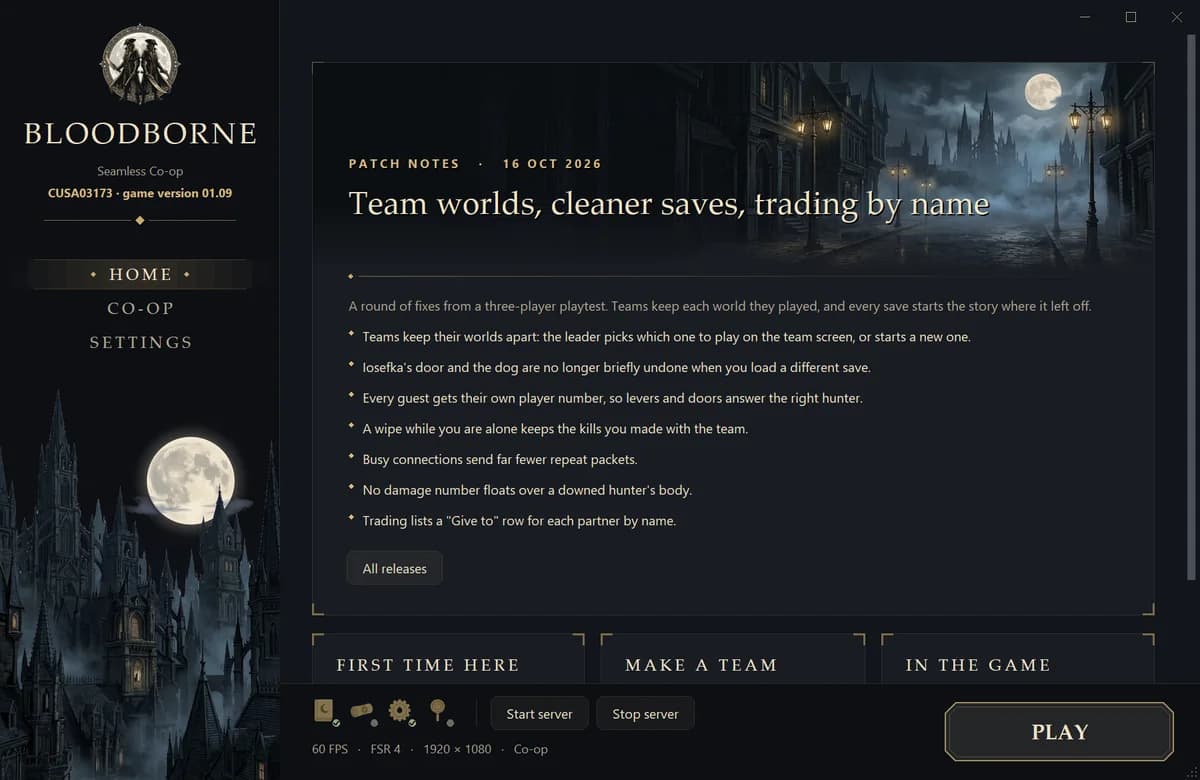
.exefrom the download page or GitHub releases and run it. It installs for your Windows user and adds a desktop shortcut. - Open Bloodborne Seamless Co-op. The launcher opens on Home, with the latest news.
- On first start the Co-op page opens by itself. Fill it in (below); Done lights up once nothing is missing. Then press PLAY.
Every screen of the setup and every launcher page, with what each is for, is in Setup and the launcher.
The Co-op page
One page for everyone, host or not. You fill it in once.
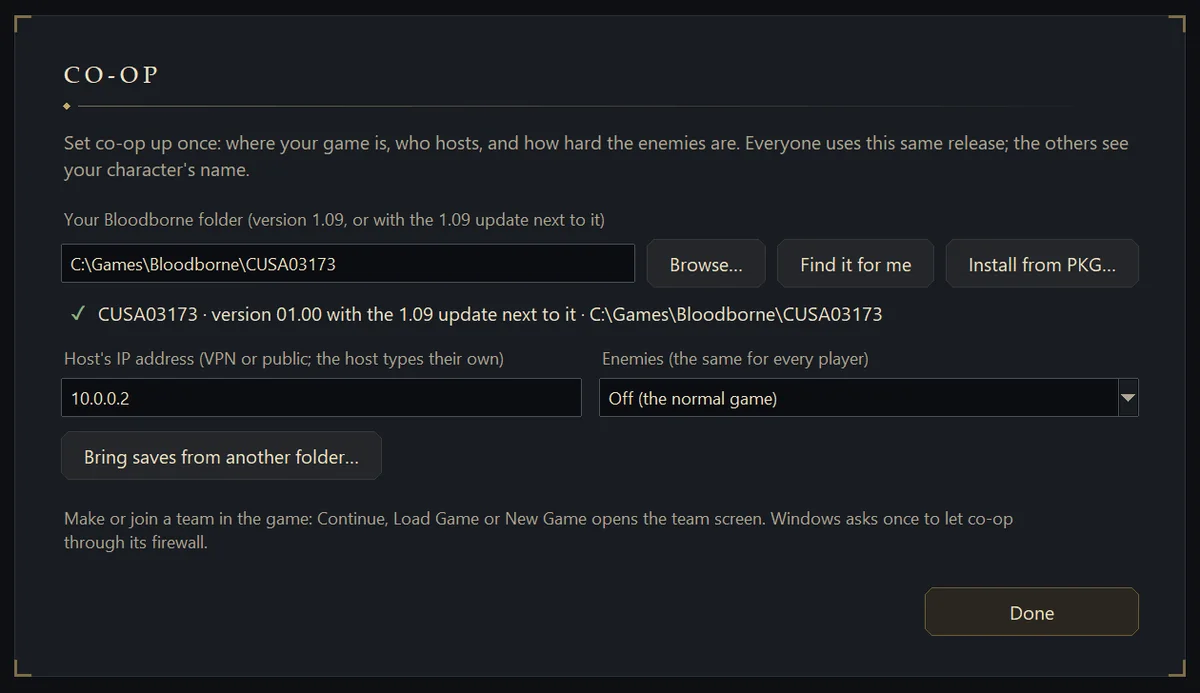
- Your Bloodborne folder
- The game, at 1.09 or with the 1.09 update next to it. Browse… picks the folder; Find it for me searches the usual places and then every drive; Install from PKG… installs the game and the update from your
.pkgfiles. The line under it says which version it found, or what is missing. - Host's IP address
- Where the host's PC can be reached: its VPN address, or its public IP. The host types their own address too; that is how the launcher knows this PC is the host.
- Enemies
- Off is the normal game. Harder gives every enemy and boss three times the HP and poise and half again the damage, to make up for the extra hunters. Everyone picks the same.
- Bring saves from another folder…
- Opens a folder picker and copies your characters over from a PS4 save folder, a shadPS4
userfolder or an older co-op install. - Done
- Greyed out until the page is complete. The line beside it says what is still needed.
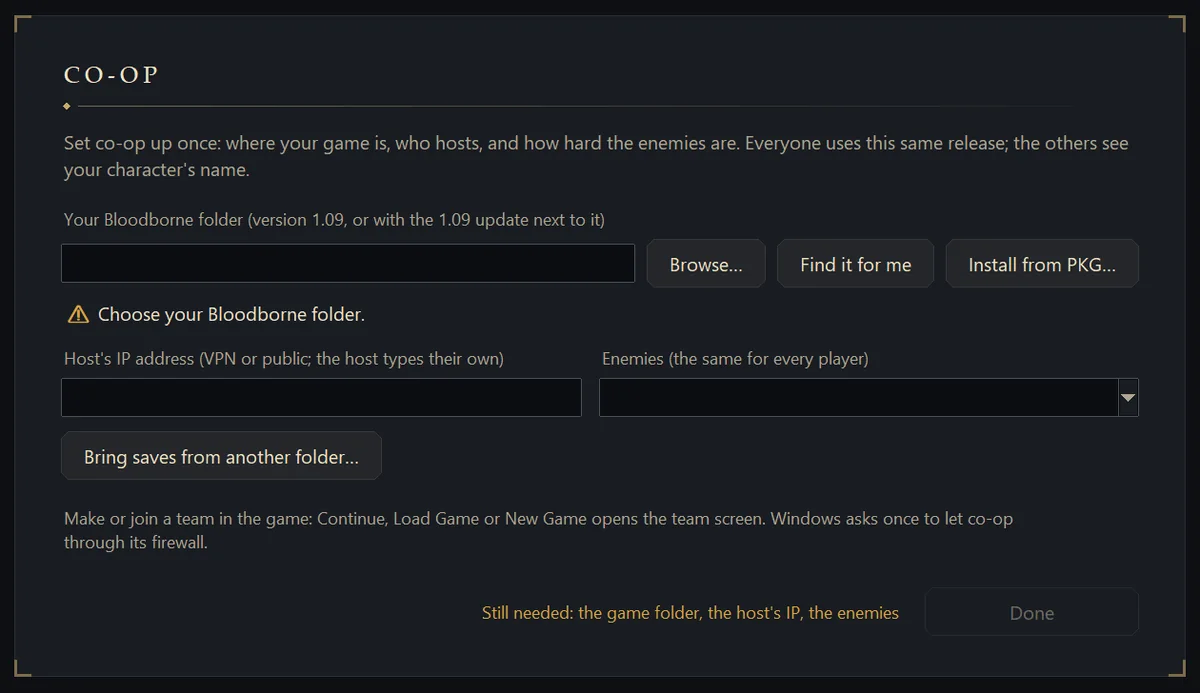
There is no account to make. The others see your character's name.
Press PLAY
- When the host's IP is this PC's own address, PLAY starts the co-op server first. If it ever stops, it restarts by itself.
- The first time, Windows asks once to let co-op through its firewall. Say yes: the launcher adds the rules for you.
- The first start prepares a game folder that links to your game. Nothing is copied.
- The game starts. Making a team happens in the game: see Playing together.


- The four icons
- Quick checks of your setup. A green check means ready, a grey dot means it is not set yet.
- Start server, Stop server
- For running the server without the game, for example when the host plays later. The word beside them says whether it is running.
- The line under them
- Your frame rate, upscaler, resolution and mode, or the last thing the launcher did.
If the game crashes, the next PLAY sends the crash report and the logs to the host's server, so the host can pass them on.
Reach the host
The host's PC is the server, so every other player has to reach it. Either:
- join the same VPN, such as Radmin VPN, Tailscale or ZeroTier, and use the host's VPN address (the easy way), or
- forward these ports on the host's router and use its public IP: TCP 31313, 31315 and 20443, and UDP 31314.
All co-op traffic goes through UDP 31314. The games never talk to each other directly.
Graphics and frame rate
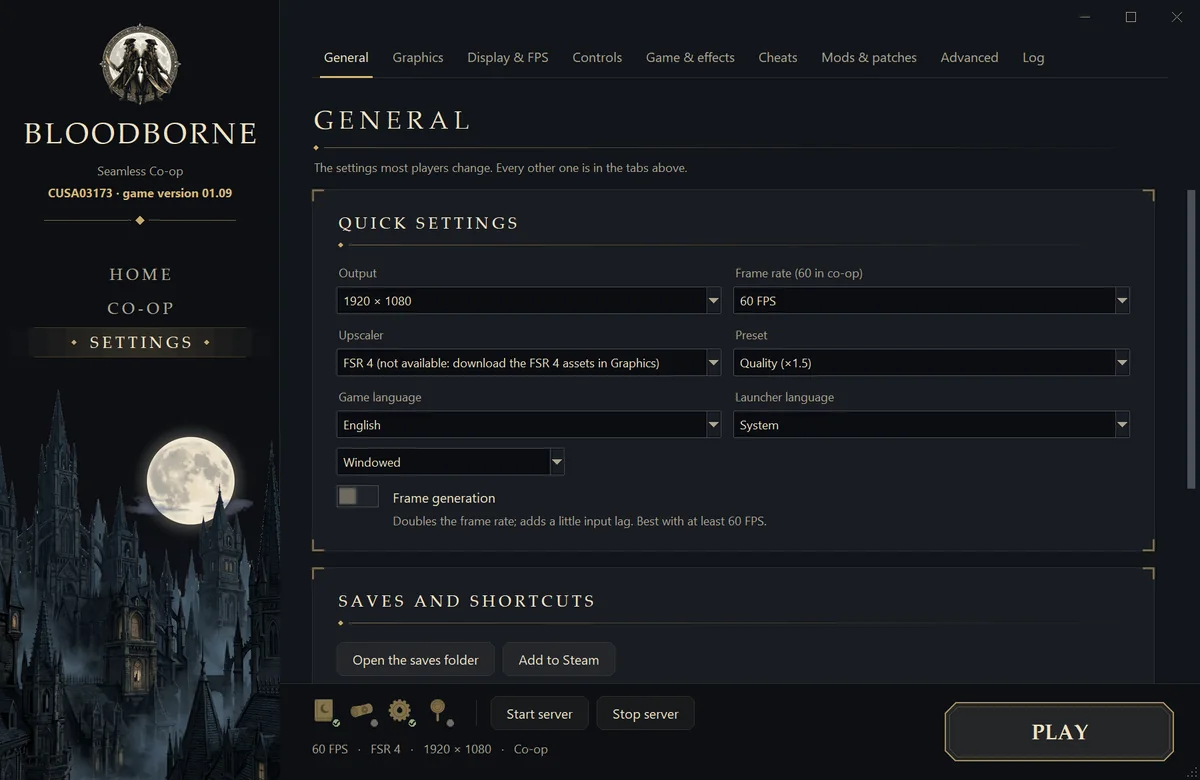
Settings holds the port's own options. General has the ones most players change: output resolution, upscaler and preset, frame generation, languages and window mode. The tabs above it go further: graphics, display and FPS, controls, mods and the log. Co-op runs at a fixed 60 FPS: the game sends its updates once per frame, and every player has to send at the same pace.
 When something goes wrong
- ✗ co-op needs 1.09
- The launcher found the game without the update. Put the update folder next to the game, or install both from the
.pkgfiles. - Co-op could not start
- Usually the folder or the host's IP is empty or wrong. On the host, check that nothing else uses the ports above.
- Nobody can join
- The others can't reach the host. Check that everyone is on the same VPN, or that the ports are forwarded, and that the host allowed the firewall prompt.
- A crash
- Report it on GitHub issues with the crash report and say which release every player was on.