 Yharnam Together
Setup and the launcher
Every screen of Yharnam Together's setup and launcher: installing, the first start, finding or installing the game, the Co-op page, the settings tabs and the status bar.
 The setup
The download is one setup .exe. It installs for your Windows user only, so it needs no administrator rights, and it holds everything: the port, the launcher, the co-op server and its tools. Nothing from the game is in it.
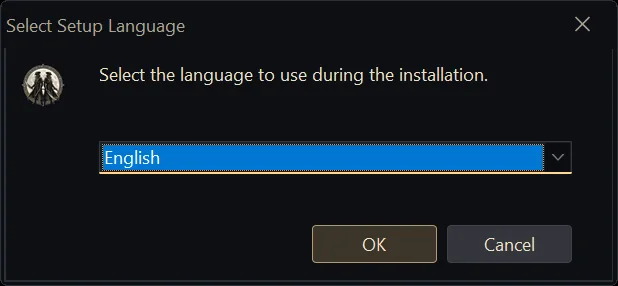
- Pick the setup's language.
- Next on the welcome page.
- Keep the suggested folder or Browse… to another. It needs about 1.6 GB.
- Leave Create a desktop shortcut ticked if you want one, then Install.
- Finish with Launch ticked opens the launcher.
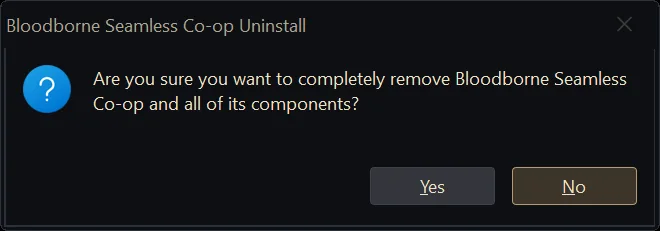
To remove it, uninstall it from Windows' Installed apps. It asks once before it removes anything.
The first start
The first time, the launcher opens the Co-op page over Home by itself, and the status bar reads Choose the game folder first. PLAY stays grey until the page is done.
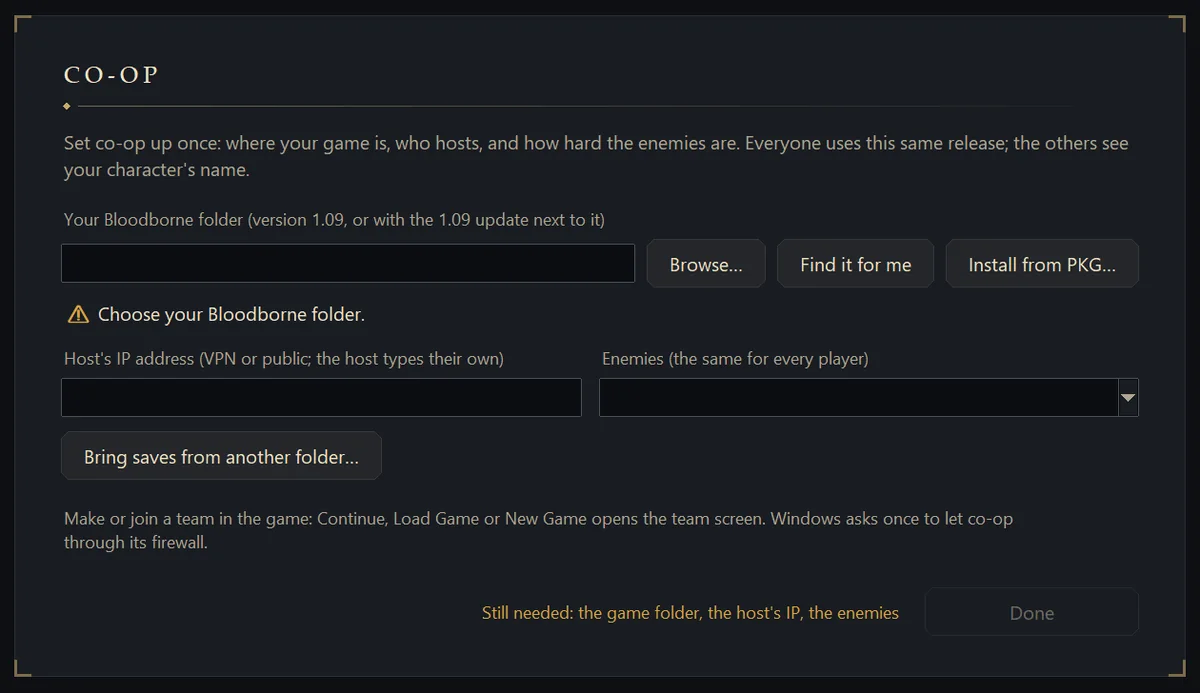
- Browse…
- Pick the game folder yourself: the folder with
eboot.bin, at 1.09 or with the 1.09 update next to it. - Find it for me
- Looks in the usual places, then on every drive.
- Install from PKG…
- Installs the game, the update and the DLC from your PS4
.pkgfiles (below). - Host's IP address
- The host's VPN or public address. The host types their own, which is how the launcher knows to start the server on PLAY.
- Enemies
- Off is the normal game; Harder gives enemies three times the HP and poise and half again the damage. Everyone picks the same.
- Bring saves from another folder…
- Copies your characters from a PS4 save folder, a shadPS4
userfolder or an older install.
The Co-op page stays in the sidebar for later changes. More on each field, and on how the others reach the host, is in Install and set up.
Install from PKG
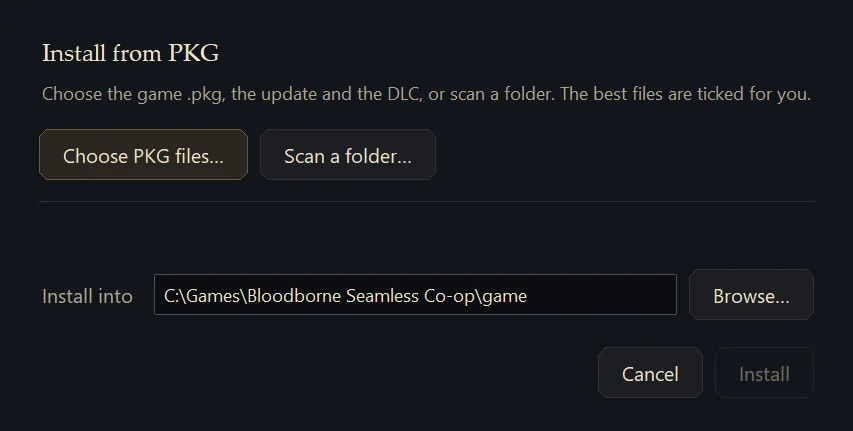
If you have the PS4 .pkg files instead of a game folder, Install from PKG… unpacks them. Choose PKG files… takes the game, the 1.09 update and the DLC; Scan a folder… finds them for you and ticks the best ones. Install into is where the game goes.
Home
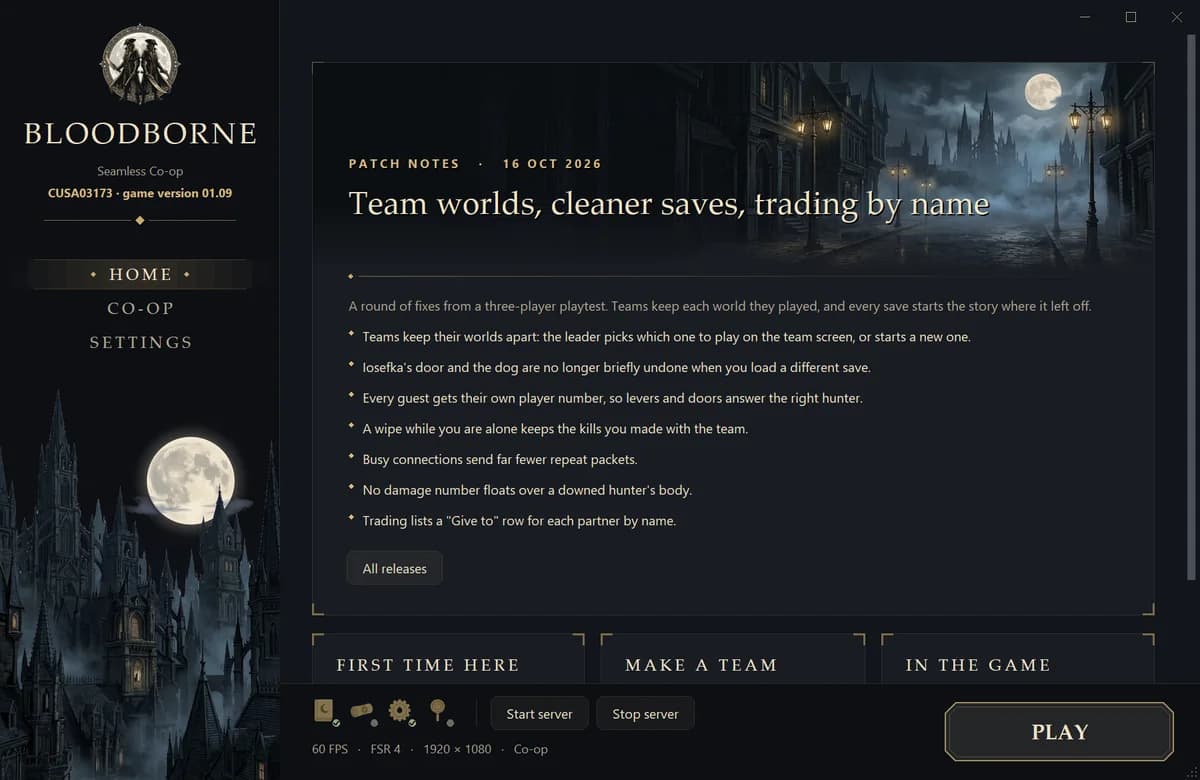
Home shows the project's news: what the latest release changed, with a link to all releases. Below it, First time here, Make a team and In the game open short guides. The launcher updates itself when a new release is out.
Settings
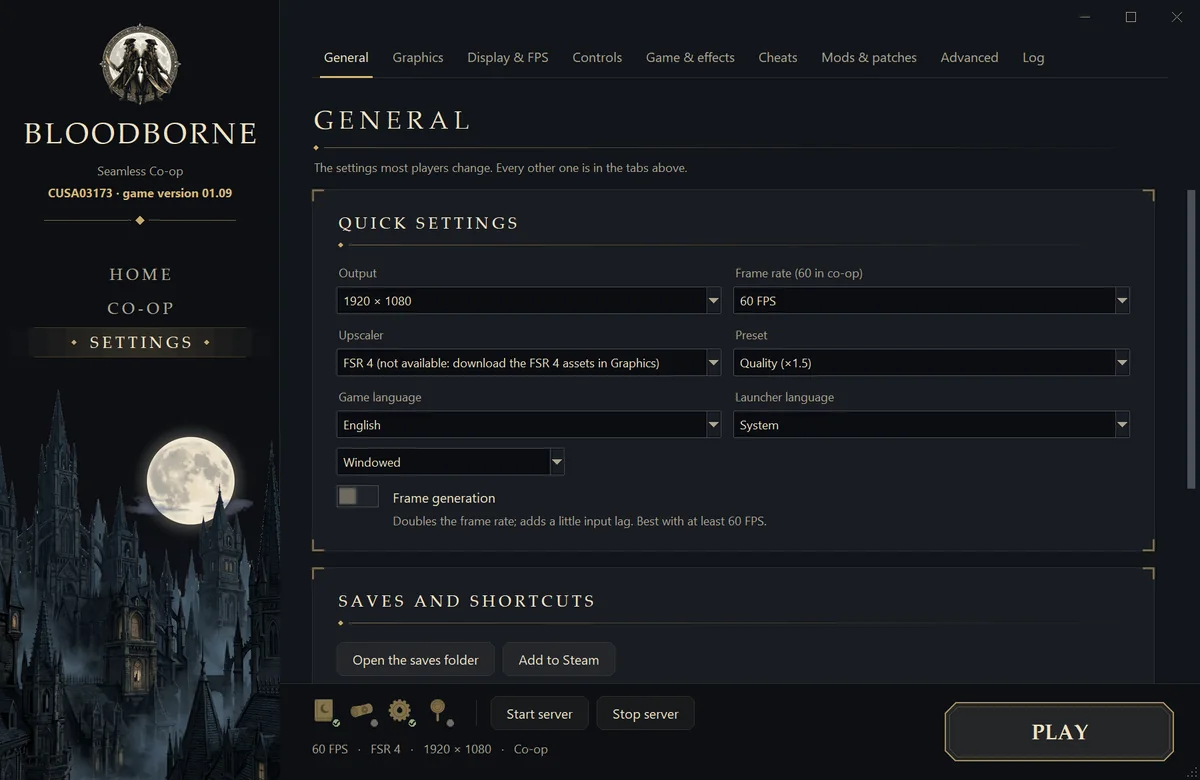
Settings holds the port's options in tabs. Most players only need General. Many of the same options are also in the game's Insert menu.
The status bar
The bar at the bottom is on every page: four status icons, the server buttons and PLAY. Under the icons, your frame rate, upscaler, resolution and mode. Hover an icon to see what it checks.

- The four icons
- The game, your saves, the graphics card and the upscaler. A green check means ready, a grey dot means not set yet.
- Start server, Stop server
- Run the host's server without the game, for example when the host joins later. The word beside them says whether it is running.
- PLAY
- Starts the game, and on the host the server first. Grey until the Co-op page is done.