 Yharnam Together
Play over Radmin VPN
Step by step: install Radmin VPN, make or join the team's network, and put the host's Radmin address into the launcher so everyone reaches the host's co-op server.
 Why a VPN
The host's PC runs the co-op server, so every other player has to reach that PC. Radmin VPN is the easiest way: it is free, needs no account and no router settings, and puts everyone's PC on one private network with an address that starts with 26.. Each player does this once.
The host
- 01 install Radmin VPN
- 02 create a network: a name and a password
- 03 send both to the others
- 04 type their own 26. address in the launcher
Every other player
- 01 install Radmin VPN
- 02 join the network with that name and password
- 03 copy the host's 26. address
- 04 paste it in the launcher
1. Install Radmin VPN (everyone)
- Download it from radmin-vpn.com and run the setup. Windows asks to install a network adapter: allow it.
- Open Radmin VPN. If the big power button at the top is off, press it.
- At the top you see your PC's name and its Radmin address, such as
26.12.34.56. That address stays the same on this PC.
2. The host makes a network
- Network → Create a new network.
- Give it a name nobody else is likely to use (for example
yharnam-hunters-4821) and a password of at least 6 characters, then Create. - Send the network's name and password to the other players.
3. The others join it
- Network → Join an existing network.
- Type the host's network name and password, then Join.
- The network shows up in the list with everyone in it. A green dot next to a name means that PC is online.
4. Put the host's address in the launcher
- In Radmin VPN, right-click the host's PC in the network and pick Copy IP address. The host copies their own address from the top of the window.
- In the launcher, open Co-op and paste it into Host's IP address. Everyone, the host included, types the host's
26.address: that is how the host's launcher knows to start the server. - Press Done, then PLAY. The first time, Windows asks once to let co-op through its firewall: say yes.
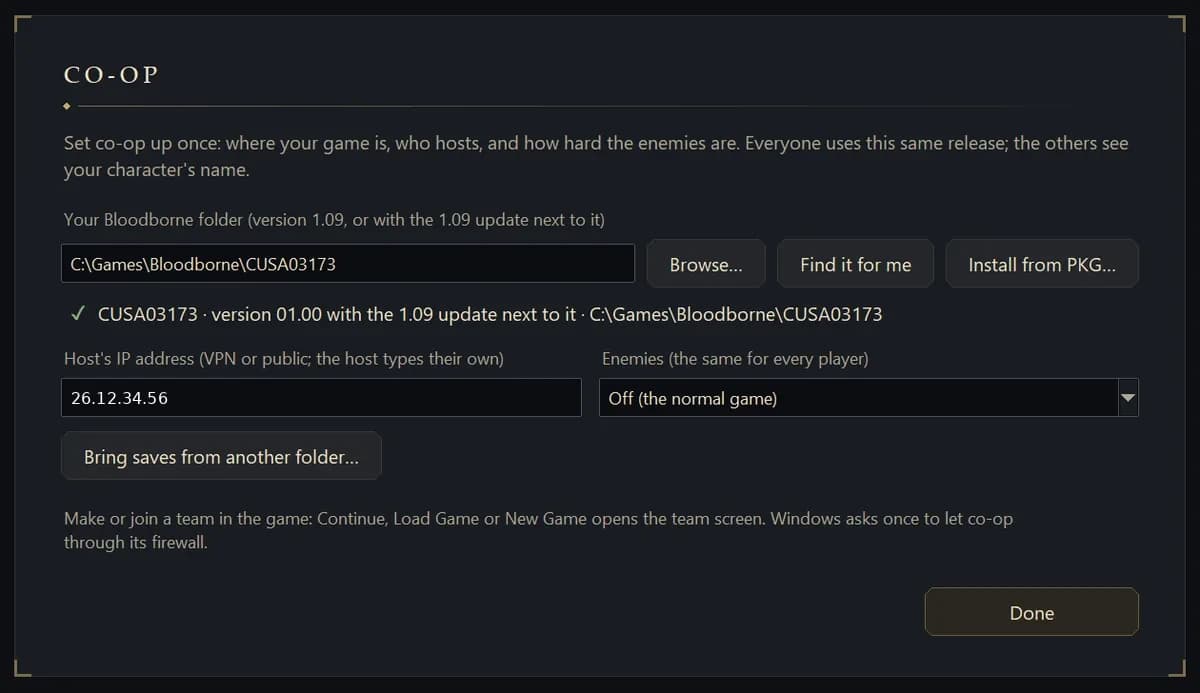
The host starts first. Then everyone makes or joins the team in the game, see Playing together.
Check the connection
Right-click the host's PC in Radmin VPN and pick Ping. A window shows replies with a time in milliseconds: the lower, the better, and anything under about 100 ms plays well. If it says the request timed out, the two PCs can't see each other yet: see below.
 When it doesn't connect
- Another VPN is on
- NordVPN and other VPN apps can block Radmin: one of our players could not connect until NordVPN was dealt with. Turn the other VPN off while you play. If it has to stay on, allow local network or LAN traffic in its settings, or leave Radmin VPN and the launcher out of it (split tunnelling).
- The firewall prompt was refused
- Press PLAY again: the launcher asks again until the rules are there. On the host it adds rules for TCP 31313, 31315 and 20443 and UDP 31314; on everyone it lets the game's network helper in. They are named
BB coop port,BB coop host TCPandBB coop host UDPin Windows Defender Firewall's inbound rules. Other firewalls (antivirus suites) need the same ports allowed. - The host's name is grey
- The host's PC is off, Radmin VPN is off there, or it lost its connection. The host presses the power button in Radmin VPN.
- Ping works but the game doesn't connect
- Check that Host's IP address is the host's
26.address on every PC, the host's too, and that the host pressed PLAY or Start server first. Everyone must be on the same release. - High ping or lag
- Radmin VPN sends traffic straight between the PCs when it can and through its relay when it can't, which is slower. Restarting Radmin VPN on both PCs sometimes finds the direct route.